How to Take Notes on an iPad: A Setup That Actually Sticks

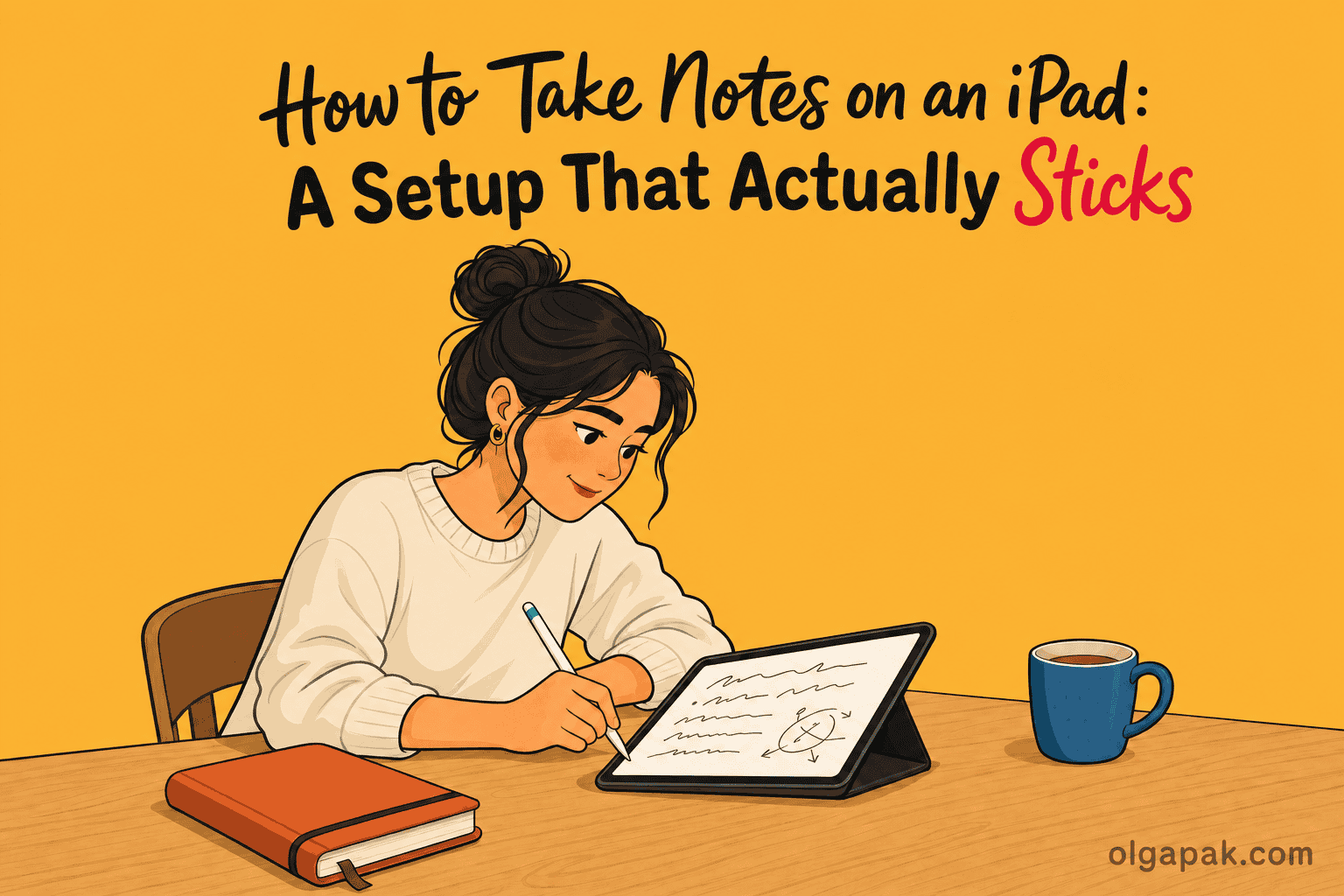
Somewhere in your house, or a friend’s house, there is an iPad bought to take notes on. It is currently watching television in bed. Learning how to take notes on an iPad turns out to be less about the device than about the five decisions you make in the first hour with it.
I write about productivity systems, and I have spent the last year working through the paper note-taking methods on this blog. So I came to the iPad already knowing what I wanted my notes to do, and which parts of paper I was not willing to give up.
The method matters more than the machine, which is why the four main note-taking methods run perfectly well on glass, on paper, or on the back of an envelope.
This guide covers all five in order, starting with whether the iPad is even the right tool, then the gear that earns its place and the mistakes that turn an iPad into an expensive Netflix screen.
First, Be Honest About Whether the iPad Is the Right Tool
An iPad does not make you a better note-taker. It makes your notes more portable, more searchable and honestly more fun to look at, which is not the same thing.
The most upvoted thing students actually say about this is not flattering. “As a normal student, you will probably use your laptop for assignments and serious work, then use your phone for videos, reading, and quick tasks. The iPad ends up awkwardly in the middle,” wrote one redditor in the highest-engagement thread I found on the subject. A teacher replied underneath with the same verdict in fewer words: “The iPad is still cool as a digital notebook. But it’s not a replacement [for] anything else.”
That is not the whole story. Another redditor came back with “I used my iPad for 4 years of uni. It’s still full of notes, drawings and pdf”, and someone on X put it more strongly: “Using an iPad for note taking was one of the best decisions I ever made in med school.”
So here is the honest split. The iPad wins when:
- Your material is a pile of PDFs you need to annotate, meaning write and highlight directly on the document the way you would on a printout.
- You want every note searchable and sitting on every device you own.
- Carrying one flat object beats carrying five notebooks and a folder.
Paper wins on cost, on never needing a charger, and on not being the same object that serves you short videos at midnight. If that last one is your actual problem, a good paper notebook is not a consolation prize. It is the right answer. The most-liked reply in my whole X research said exactly that: “Try Pen and Paper. U will love it. Also its slightly cheaper than iPad.”
Step 1: Pick One App and Stop Shopping
App-hopping is the single most common way this fails. Every app below is good enough, so pick the one that matches what you are actually doing, commit for a full term, then judge it at the end.

There is no best note-taking app for an iPad, and I am not going to pretend otherwise. Readers disagree loudly, and the loudest recurring objection is not about features at all. Subscription fatigue turned up in three of the five Reddit threads I read. “anything with a subscription lost me. I’m sick of it like why a sub to take notes,” as one redditor put it. Another was blunter: “Apple Notes is really good and it comes with the iPad.”
If You Want to Handwrite
- Apple Notes. Free, already installed, and it handles handwriting plus handwriting search. This is the correct starting point for almost everyone, because it costs nothing to find out whether you actually enjoy writing on glass.
- GoodNotes. The all-rounder most people land on. Two objections come up again and again: it runs on a subscription, and some readers report losing notes. Those data-loss reports are complaints readers raise rather than anything I can verify, but they come up often enough that you should back up anything you cannot afford to lose.
- Notability. The student pick. It records audio alongside your notes, so you can tap a word later and hear what was being said at the moment you wrote it.
- Noteful and CollaNote. The no-subscription alternatives readers volunteer without being asked, usually right after someone complains about paying monthly to write things down.
If You Want to Type and Organize
Apple Notes does this half too, so you may not need anything else at all. OneNote makes sense if the rest of your life already lives inside Microsoft. Notion and Obsidian answer a different want entirely: notes that link to each other instead of sitting in folders.
Almost nobody writing about iPad note-taking mentions either of these two, and that is a gap rather than an accident. They are structure tools rather than handwriting tools, and plenty of people who buy an iPad for notes actually wanted the structure tool.
How to Choose in Five Minutes
Not sure? Open Apple Notes today. If after two weeks you find yourself wanting page templates and proper PDF markup, move to GoodNotes or Notability. If instead you keep wanting to link one note to another rather than draw on them, you wanted Obsidian or Notion all along.
One practical reason to commit early: exporting a year of handwritten notes out of one app and into another is genuinely annoying. That, and not any feature difference, is what app-hopping really costs you.
Step 2: Set Up Your Notebooks Before Your First Lecture
This is the boring part that decides whether the whole system survives past October. One notebook per subject or project, a naming pattern you can predict, and a single inbox note for anything that does not have a home yet.
Name things date first, then topic, because date-first sorts itself and you never have to think about it again. Apple Notes gives you a small assist here: if a note has no title, the first line of handwritten text becomes the suggested title. So start every page with the date and the subject.
Two more built-in habits worth setting up on day one:
- Turn on iCloud sync. Your notes then live on every device you own, which kills the “which device did I write that on” problem before it starts.
- Learn Quick Notes. You can capture a thought from any app or screen without leaving what you were doing, which is how stray ideas end up in your system instead of evaporating.
Weekly folders are a trap. You will never think “I need the week of 12 October”, you will think “I need the lecture about supply curves”. Subject folders match the way you actually search.
Step 3: Decide When You Handwrite and When You Type
This is the decision the whole “does an iPad help you learn” argument hinges on, and it deserves a more careful answer than the internet usually gives it.
In 2014, Mueller and Oppenheimer found that students taking notes on laptops did worse on conceptual questions than students writing longhand, and blamed the laptop group’s tendency to transcribe lectures word for word instead of reframing them. Notice what that study actually compared: longhand on paper against a laptop keyboard. It did not test tablets or styluses at all.
Then it got complicated. A 2019 direct replication found performance did not consistently differ between any groups, including a group that took no notes whatsoever, and its authors called any verdict on which method is superior “premature”.
So what survives both papers? This: what hurts is copying words down without processing them, whichever tool you are holding. Handwriting helps mostly because it is too slow to transcribe with, which forces you to choose what matters.
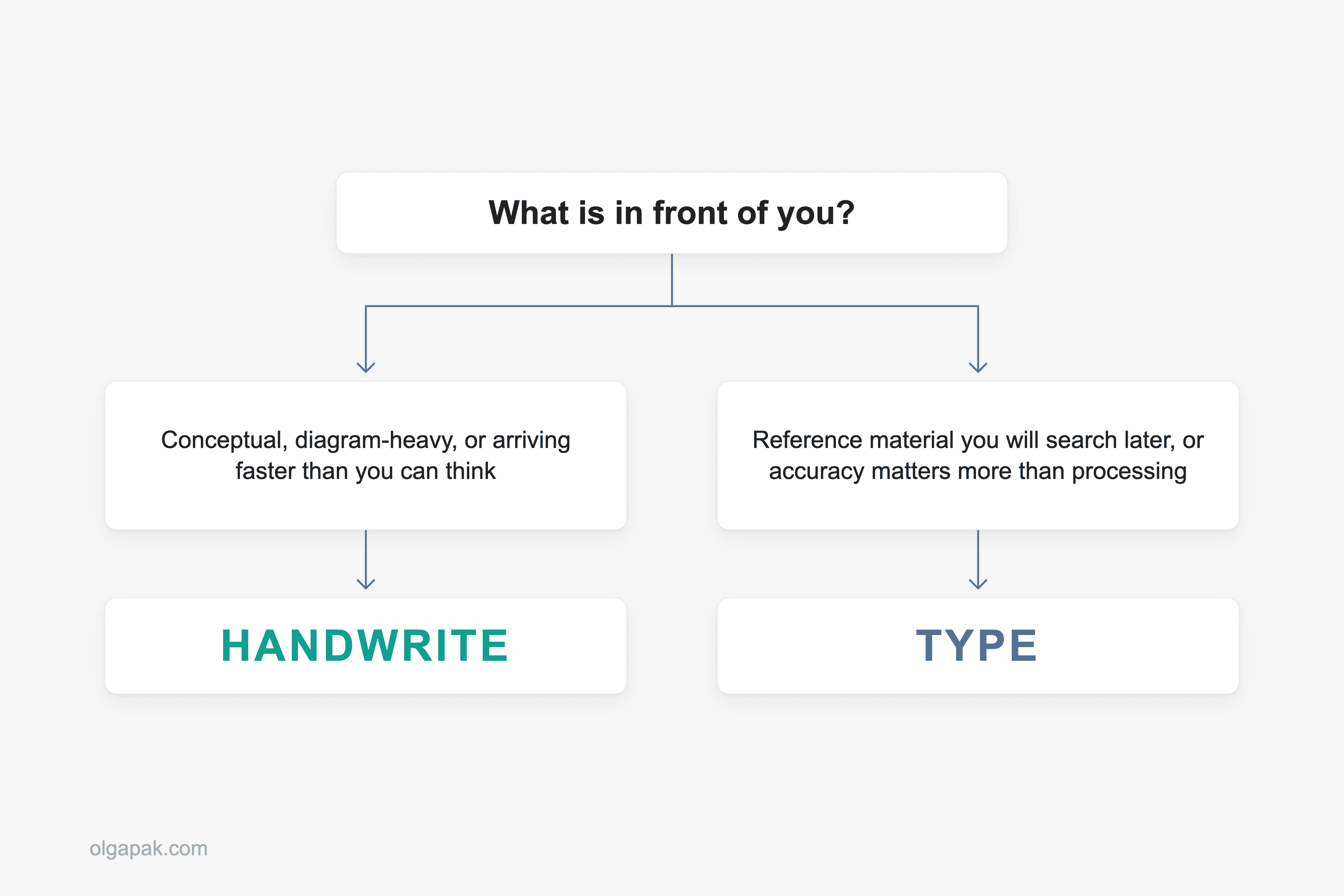
The rule I use is short enough to remember in a lecture:
- Handwrite when the material is conceptual, diagram-heavy, or arriving faster than you can think about it.
- Type when you are capturing reference material you will search later, or when your hand genuinely cannot keep up and accuracy matters more than processing.
It is not always a binary, either. Scribble, Apple’s handwriting-to-text feature, converts what you write into typed text right there on the iPad, so you can write by hand into a note that ends up typed and searchable.
Step 4: Take the Notes, Then Actually Review Them
The app is not the method. Every method I’ve written about on this blog works on an iPad, and the tablet’s real advantage shows up in the review pass rather than the capture pass.
Take the Cornell method, which translates cleanly. Split the page roughly 70% notes and 30% cue column, with a summary strip along the bottom, and on a tablet you get there by dragging a resizable box over the page instead of ruling lines. No smudged rules, no crooked margin.
Which methods genuinely gain from a tablet? The ones where the layout is the work.
- The charting method gets columns you can widen after you have already filled them in, which paper flatly cannot offer.
- Mind maps get an infinite canvas, so you stop running out of room in the bottom right corner.
- Cornell gets that box as a saved template, built once and reused all term.
The Review Pass (This Is Where the iPad Earns Its Keep)
You can search handwritten text in Notes, in supported languages. Handwriting search means what it sounds like: you type a word, and the app finds the page where you wrote it by hand, months ago, in your own scrawl. This is the one thing a paper notebook genuinely cannot do, and it is the strongest single argument in this post for going digital.
The habit matters more than the feature, though. After each lecture or reading session, condense the page into a few bullets in your own words. If you cannot, you have just found the part you did not understand, and it is much better to find that now than in an exam.
Condensing does not mean recopying, either. Smart Selection lets you select handwriting with the same gestures you already use on typed text, then paste it into another note as typed text. If you want software doing more of that condensing for you, that is the whole point of an AI note-taking workflow, which layers cleanly on top of the setup in this post.
The Gear That Earns Its Place (and the Gear That Doesn’t)
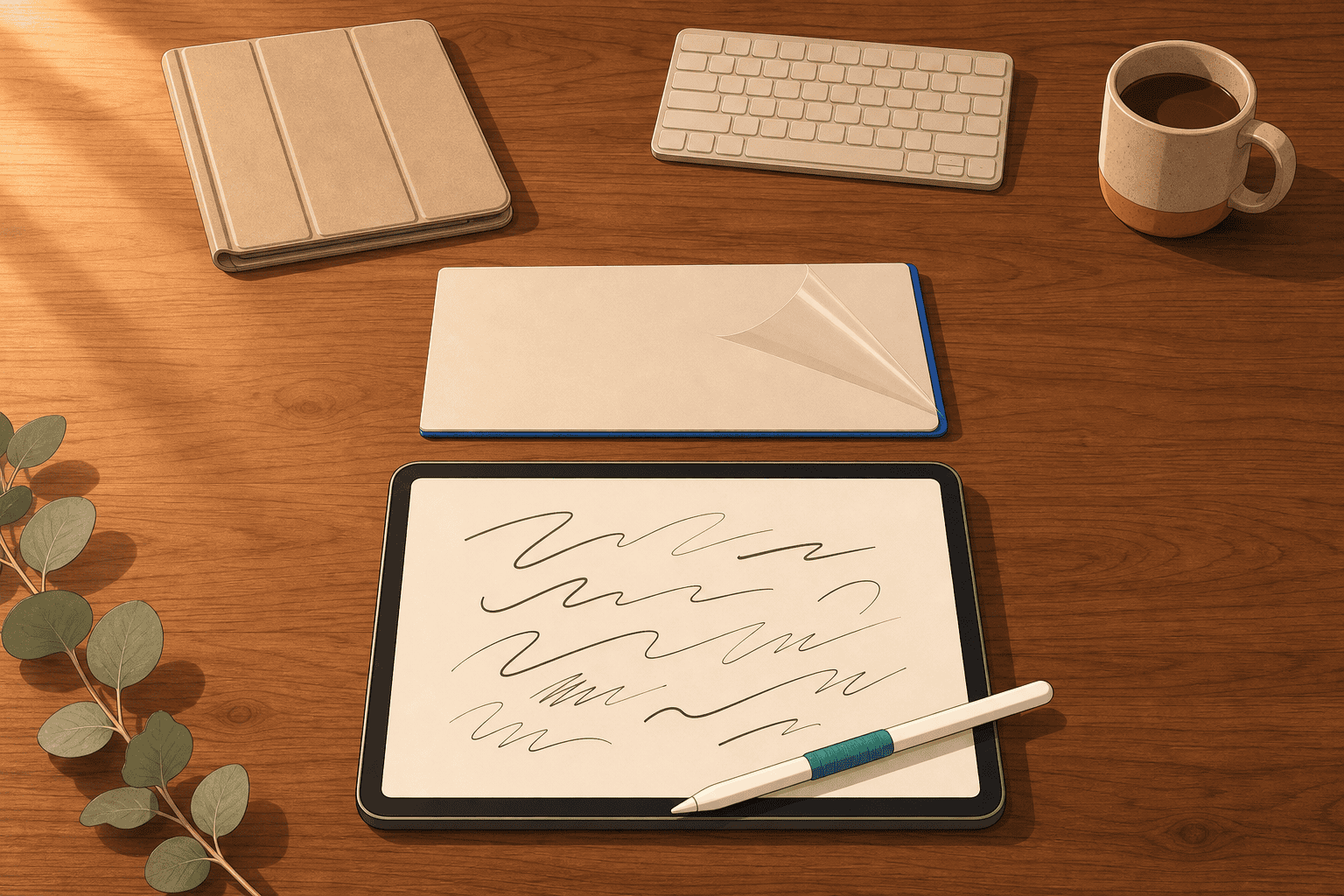
Start here: you do not need to buy anything to try handwriting. Apple’s own Notes documentation says you can draw or write with Apple Pencil or with your finger, so you can find out today whether writing on glass suits you at all.
So what actually earns a place in the bag?
Here is the whole list, in descending order of how much it matters:
- An Apple Pencil, worth it if you handwrite regularly and not before. Compatibility is model-specific and shifts with every new iPad, so check which Apple Pencil works with your iPad rather than trusting a chart in a blog post. If it’s a present, my guide to gifts for students covers the stylus picks and the compatibility check to do first.
- A cheaper stylus, which covers the same ground for most people. The Logitech Crayon uses Apple Pencil technology and does everything note-taking asks of it.
- A paper-feel screen protector, a matte film you stick over the screen to add a little friction.
- A case, a stand, a keyboard, all genuinely optional. A keyboard turns the iPad into a small laptop, which is a different tool and a different decision.
One thing before you reach for the fancier Pencil: for note-taking specifically, almost none of the Apple Pencil Pro’s extra features (squeeze, barrel roll, haptic feedback, double-tap, pressure sensitivity) change anything. They matter for drawing. Both current Pencils already have what notes need, including palm rejection, which simply means the screen ignores the hand you rest on it while you write.
The screen protector deserves its own note, because it is the standard fix for “my handwriting looks terrible on this thing,” and it came up unprompted in my X research, then again in the other guides I read. The mechanism is plain enough: a stylus tip skates on bare glass, and a matte surface gives it grip. The trade-off is real, though. Your screen looks slightly softer and less sharp afterwards, which matters if the same iPad is also your video screen.
The Mistakes That Turn an iPad Into an Expensive Netflix Screen
I’ve made at least three of these myself. Nobody quoted below is a strawman. None of this is hypothetical.
- Shopping for apps instead of taking notes. Diagnosis: you have opened five apps this week and written three pages. Fix: pick one today and do not reopen the question until the term ends.
- The template and pen-colour rabbit hole. “I bought goodnotes and spent a fortune on templates. Ultimately though I have gone back to apple notes it’s more than enough for my use case,” one redditor wrote. Someone on X described the same spiral from the other side: “You buy an iPad for better note-taking ability but then you get disappointed with your handwriting because it doesn’t match the aesthetics you had in your head. So now your iPad is in some corner collecting dust.” One student on X even described a professor who banned tablets for note-taking in his class because, the professor said, a past student “spent too long making their notes look pretty”. Fix: one template, two pen colours, all term.
- Leaving notifications on during lectures. The note-taking device is also the distraction device. Someone on X compressed the whole problem into six words: “ipad + pencil = productivity. ipad + youtube = doomscrolling”. Fix: Focus mode on before the lecturer starts, and if the pull is stronger than a toggle can handle, my guide on how to stop doomscrolling goes deeper.
- Never rereading anything you wrote. Diagnosis: beautiful pages, no recall. Fix: the review pass above, ten minutes, same day.
- Buying the expensive model to fix a habit problem. A pricier iPad does not write better notes than a basic one. Fix: buy the cheapest model that runs the stylus you want, and spend the difference on nothing.
Write Less, and Keep More of It
The step before you write is deciding what is worth writing at all. When I’m facing a long reading or a lecture transcript, I condense it first and hand-write only what survives the cut. Process it, don’t transcribe it. That’s the whole idea this post rests on.
Try my free AI tools to automate the mundane, starting with the Text Summarizer. Let it do the shrinking, and keep your attention for the notes worth writing by hand.
FAQ
What is the best app for taking notes on an iPad?
There isn’t one, and anyone crowning a single winner is guessing. It depends on whether you handwrite or type: handwriters tend to land on GoodNotes or Notability, while readers who want linked, structured notes prefer Notion or Obsidian. Plenty of people actively reject the popular paid picks over the subscriptions. Start in Apple Notes, which is free and already installed, and move up only if it stops being enough.
How can I take notes on my iPad for free?
Apple Notes is free, already installed, and does more than most people realise: handwriting with a Pencil or your finger, Scribble to turn handwriting into typed text, and search that finds your own handwritten words. If you want more without a monthly commitment, free tiers and one-time-purchase apps like Noteful and CollaNote are what readers recommend to each other.
Do I need an Apple Pencil to take notes on an iPad?
No. Apple’s own documentation says you can draw or write in Notes with an Apple Pencil or with your finger, so you can test handwriting today without buying anything. A cheaper stylus like the Logitech Crayon covers what note-taking needs. The Pencil is a quality-of-life upgrade, not a requirement, and if you do buy one, check Apple’s compatibility picker first.
Is an iPad actually better than paper for taking notes?
It is honestly split. Searchable handwriting and having every note on every device are real advantages paper cannot match, and marking up PDFs is far easier on a tablet. Paper wins on cost, on never needing a charger, and on not being the same object that serves you video at midnight. The memory research is contested, so do not decide on that.
Do I need a paper-feel screen protector?
No, but it is the most common fix for handwriting that looks worse on glass than it does on paper. A stylus tip slides on a bare screen, and a matte film gives it enough grip to write neatly. The trade-off: your screen looks slightly softer afterwards, worth thinking about if the same iPad is also your video screen.